As well as editing your website’s existing pages, you can also add new pages and remove ones you don’t need anymore.
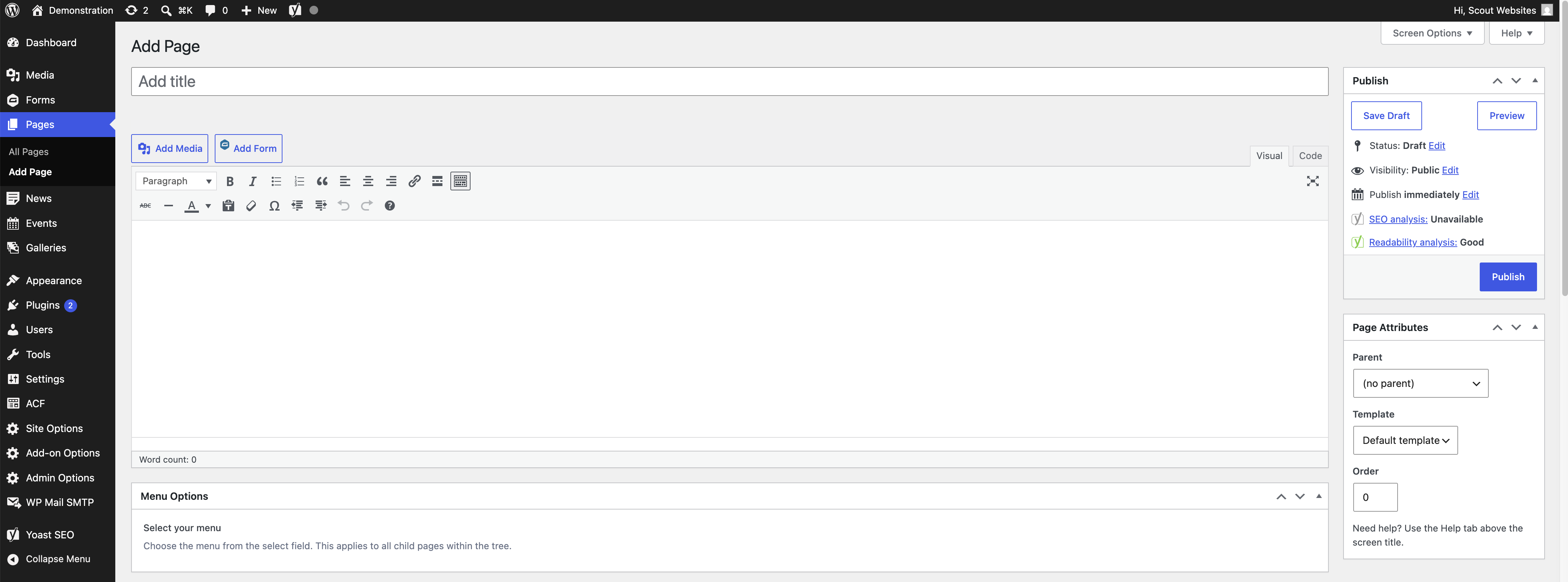
There are two ways to add a new page. Remember that you need to be logged in. You can:
hover over + New along the top and click on Page.
click on Pages on the sidebar on the left and click Add Page.
Most beginners find it easier to work in visual editor (rather than code editor) for things such as adding text and photos because it is very similar to word processing.
Give your page a title in the Add title box.
You can then simply start typing or you can paste in text from elsewhere.
Use the tools in the toolbar to format your content.
Use the Add Media button to add photos from your Media Library.
Check out your Playground page for layout ideas.
There is a Publish sidebar on the right. This gives you various options.
Use the Preview button to check out what your page will look like at the front-end.
You can save your work as a draft page until you are happy with it.
You have different visibility options (Public, Private and Password-Protected).
When you’re happy, just click Publish and your page will go live.
You can add a banner at the top of the page – an image, a title and a few words of introduction.
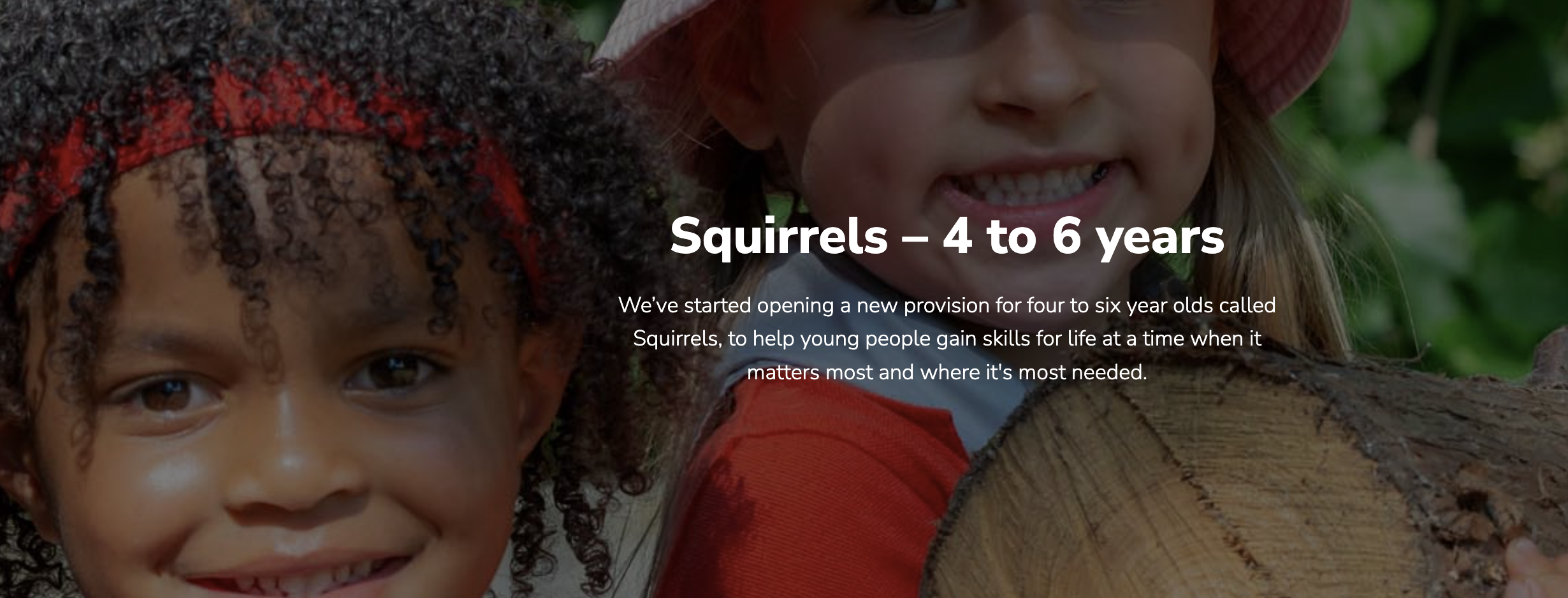
To add a banner:
Scroll down to Page Options and Banner.
Click Add Image to select an image from your Media Library.
Add a title (ideally the same as the title you gave to the page).
Add some content.