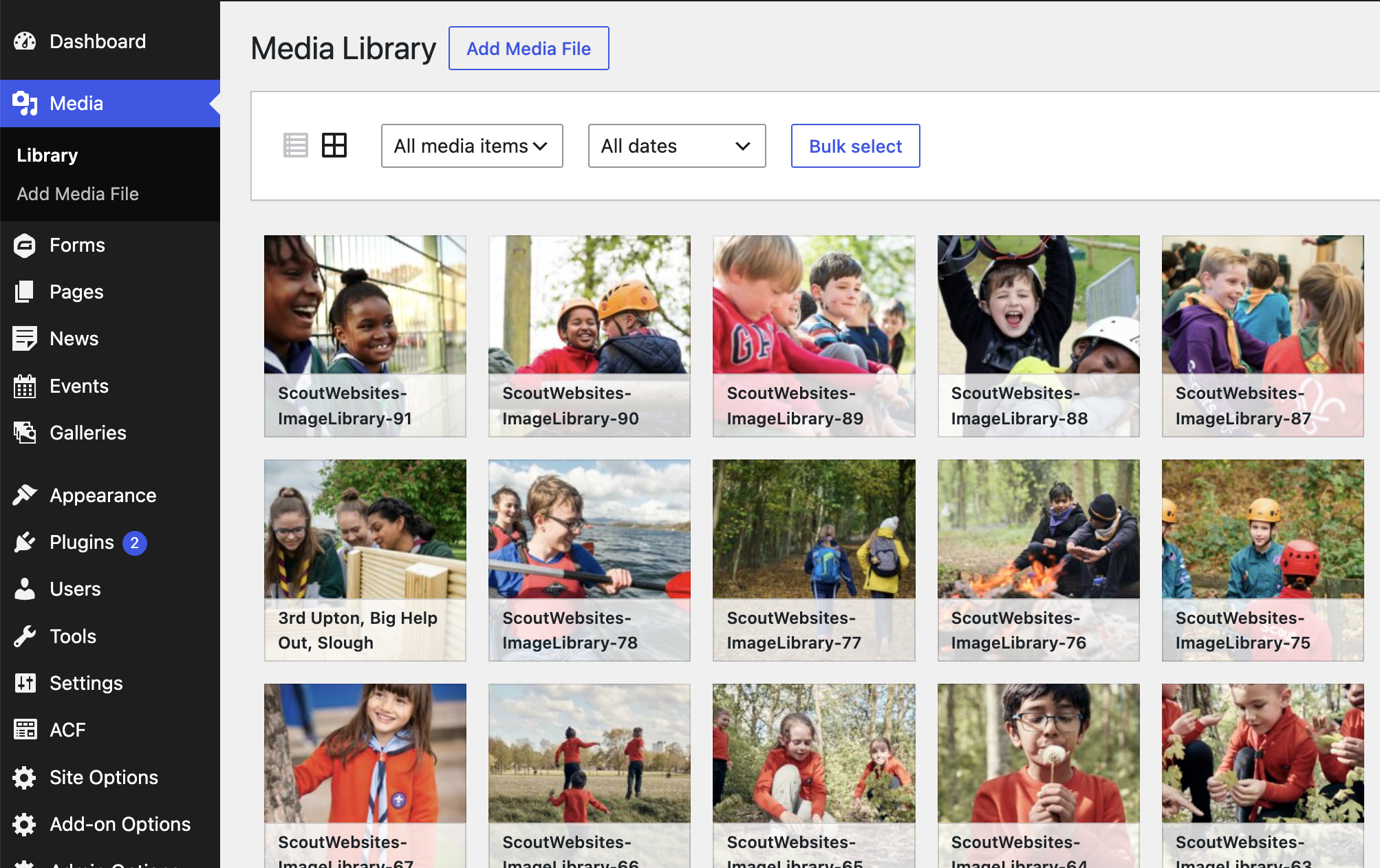
The Media Library is where you are able to upload any images, documents (such as PDFs) and any downloadable, visual or other elements to add to your pages.
From here you will be able to access and view all past assets and upload new media to the Library.
There are various ways to add an image or document to your Media Library:
Open the Library (as in the photo above) and simply drag-and-drop an item in.
Click Add Media File and then Select Files. You can EITHER drag-and-drop a single image or document OR highlight it using your mouse OR hold down the Ctrl/Command button whilst selecting to add multiple images or documents at the same time.
The files added in your Media Library are organised chronologically from when you added them to the site.
You can search the Library using a keyword or document name in the Search media box to find a specific upload.
The Media Library includes Scouts library photos which we have the licence to use.
To delete a single item:
Click on the item in your Media Library and then click Delete permanently.
To delete multiple items:
Click Bulk select in your Media Library. Your Library items will appear faded.
Select the items you want to delete. Selected items will display a tick-box.
Click Delete permanently.