
You can align images to the left or the right of a page or article. Any text will wrap around the image.
The process is the same as adding an image that fits across the page. See our article about how to do this.
Once you have inserted a photo in the editing area, click on it and a panel appears (see image below).

These give you alignment options:
Align left
Align centre
Align right
No alignment
If you left-align or right-align an image, it will automatically display on the live page in a smaller size, with any text wrapped around it.
Clicking on the pencil icon gives you additional editing options (see image below).
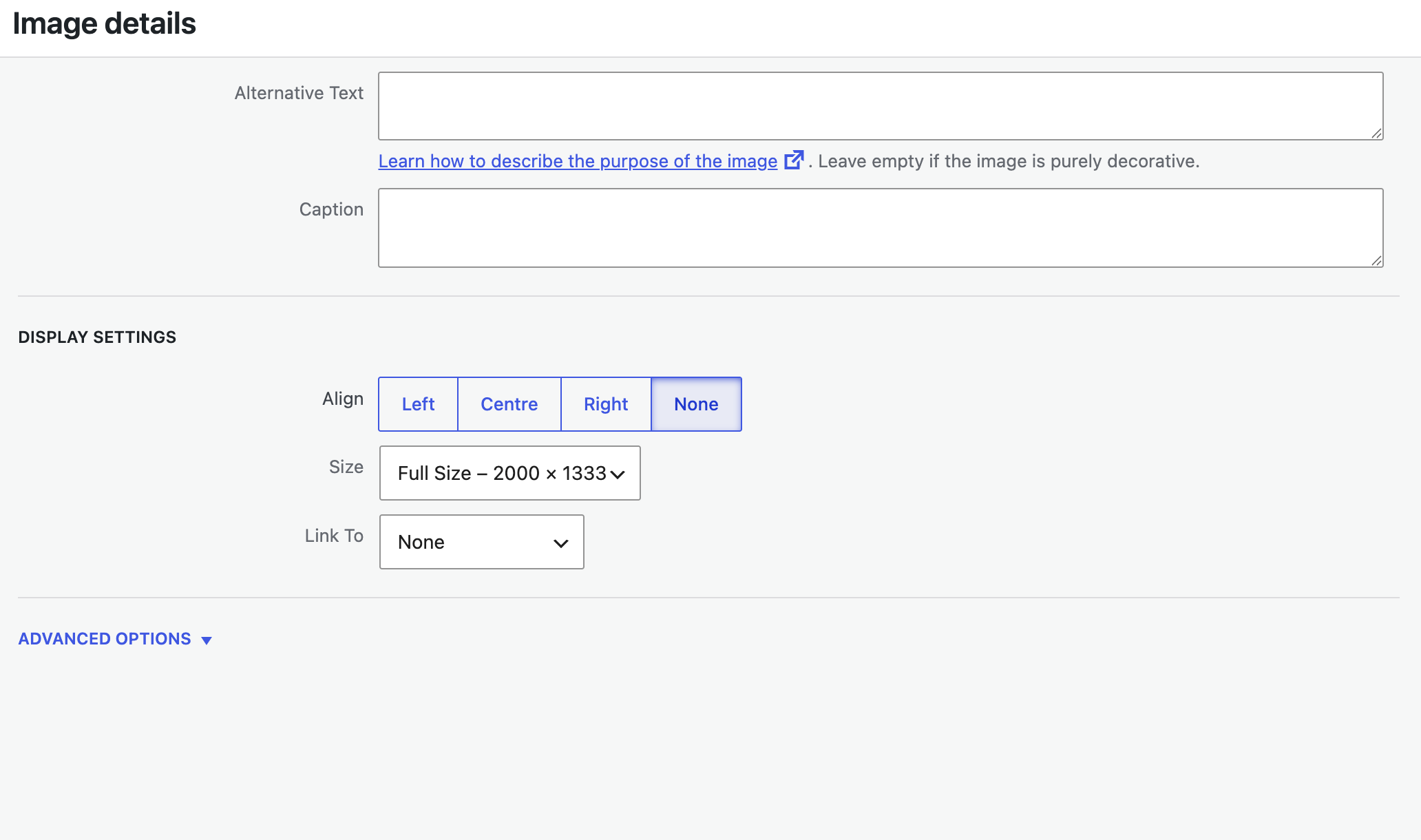
You can add a caption, for example.
You can also use the Link To dropdown list to link your photo to another website. Choose Custom URL from the list and then paste in the website you want the photo to link to.
Remember to click Update if you do make any changes.