The volunteers that manage a website can change for a variety of reasons.
Tip: For security, never use someone else’s account - make sure you have your own. The platform tracks who makes changes. Using the same account will cause this to be incorrect, and will also mean you can overwrite each other without warning.
If a volunteer in your Group, District or County has access to WordPress, they’ll be able to add you as a new user. Ask them to follow the below steps.
Log in to WordPress
Navigate to Users
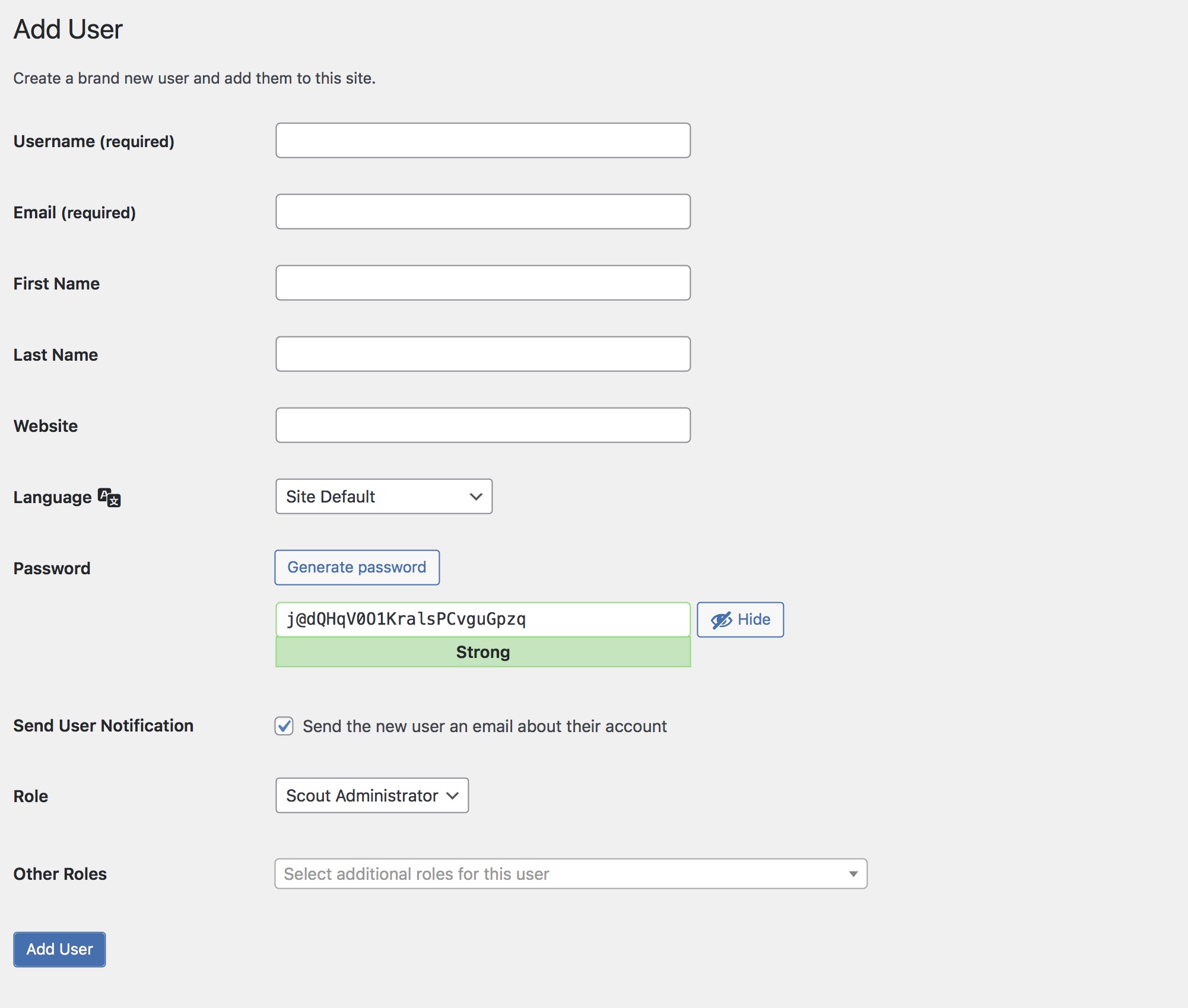
Choose Add User
Complete the fields below, and choose to Send the new user an email about their account. It may also be worth emailing their details to them too.
If you’ve just been added as a new user, please make sure you change your password because this password may have been shared with the user who set your account up for you during the process.
If you’ve lost access completely, please contact our team and we will be happy to help. Note: we’ll need authorisation from someone we have on record, or for you to have a Scouts email address to be able to share access with you.
The log-in screen is unique to your website, so you’ll need to save or bookmark this link for the future, allowing you to find it more easily.
To access WordPress, you’ll need to add some text after the URL in the address bar when you visit your homepage. Follow the below steps:
Navigate to the homepage of your website e.g. 1stlondonscouts.org.uk
In the address bar, after your domain, type /wp-admin
You should now see your web address like this, as an example: 1stlondonscouts.org.uk/wp-admin
Hit enter on your keyboard, and you should see the below.
Simply enter your username (this is usually your full name, but you can use your email address here too). Then enter your password. Then hit Log In, and you’re in!
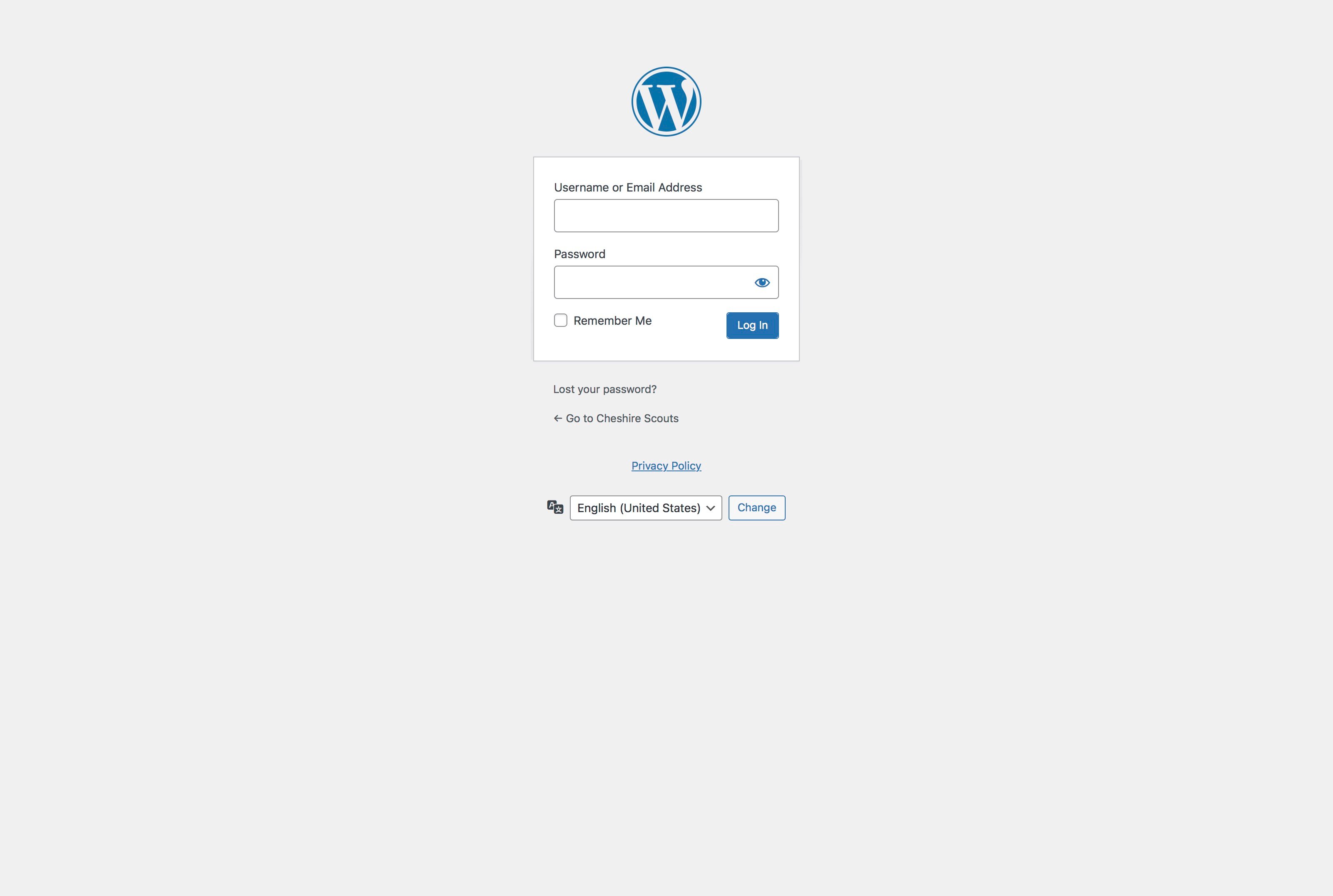
Tip: There’s a handy password reset too if you need it.