On the homepage of your website, you’re able to show the age sections that you cater for within your Group, District or County.
For the majority of Districts and Counties, all sections will be required. For some Groups, they may wish not to have some age sections showing if they don’t run the section locally currently.
The default setting for your homepage is to show all section logos, and not have these linking up when they are clicked.
If you’d like to either adjust the sections that show, or add links to some/all of the sections that show, allowing a user to click on Beavers as an example, and be taken through to your sectional page about Beavers, you will need to amend some settings.
In the address bar, after your domain, type /wp-admin
Log into WordPress
Head to Site Options near the bottom of the list on the left-hand navigation bar
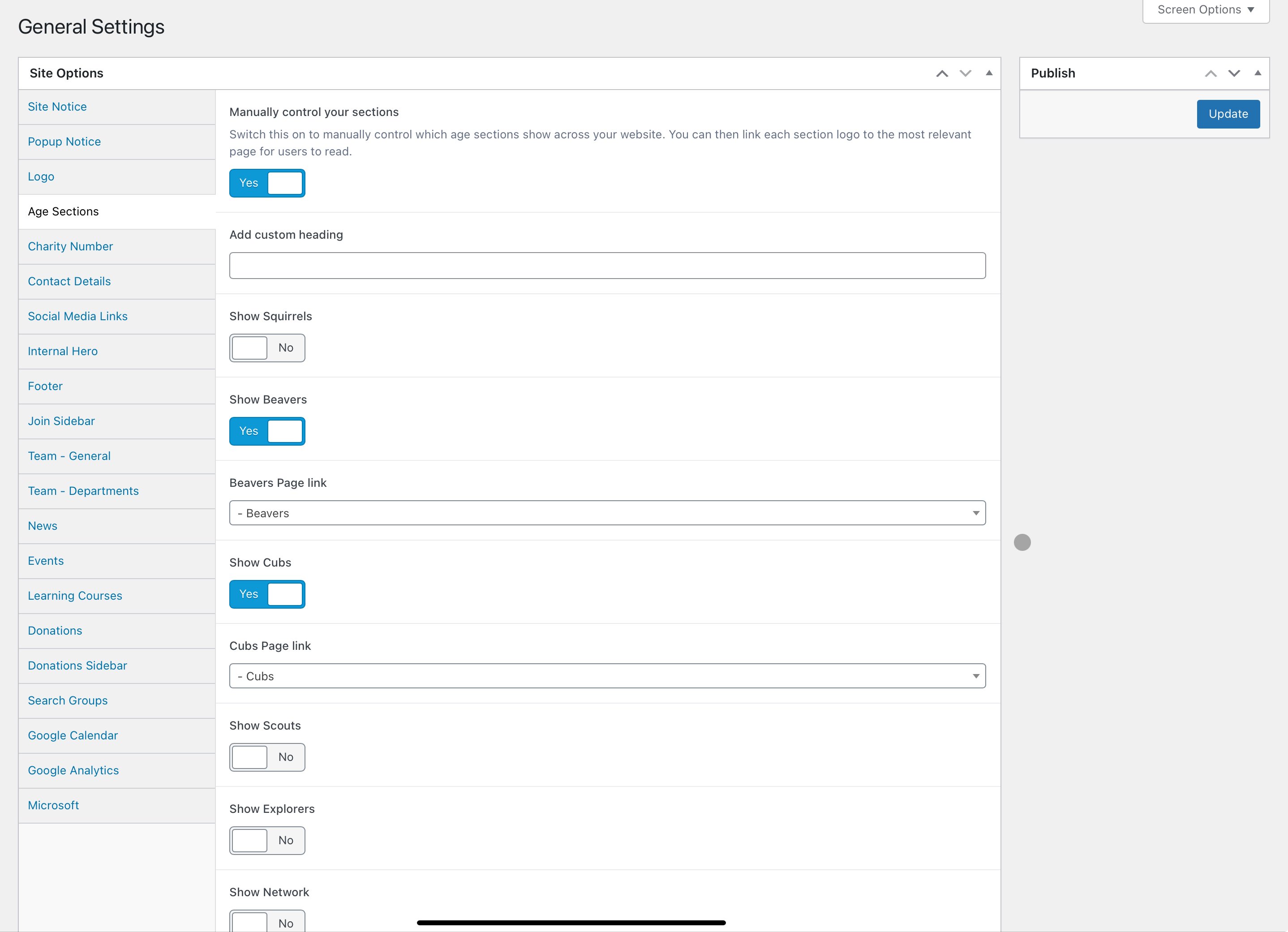
Within this screen, choose the tab Age Sections
Ensure the toggle is on that says Manually control your age sections
If you wish to change the text (optional) that appears above the sections on the homepage, enter this within the Add custom heading box. We’d recommend this is kept relatively short. By default this says: Aged 4 to 25?
Change the toggle to the blue Yes on all sections you wish to show
If you’d like any of these section logos to link to a page, select this page within the dropdown that appears below each - you can search for a page within these dropdowns
Click Update in the top right-hand corner of your screen, and head back to your homepage to see and test the changes you have made.