There are a number of menus on your website – the Main Menu and several sub-menus. Your menus appear on every page.
The Main Menu (or 'Primary Navigation') is the big menu near the top of the page, just underneath your Group or District name.
Log in and go to your dashboard.
Click on Appearance in the sidebar and then Menus.
Make sure that Select a menu to edit is set to Main Menu (Primary Navigation).
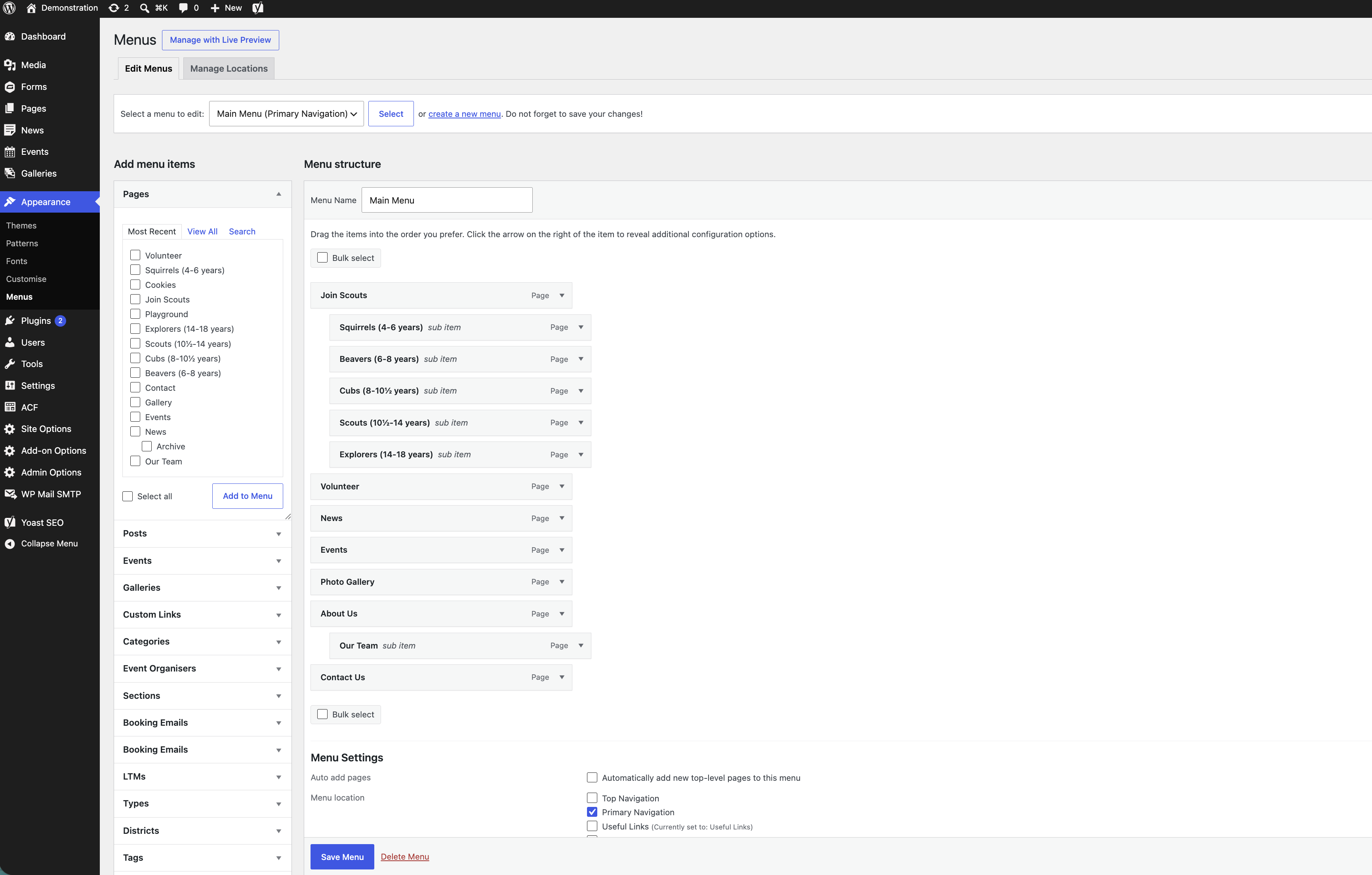
You will see a page looking something like this (above). The menu you are looking at here is a visual representation of the Main Menu on your actual website. It shows all the pages that appear. (NB You can add other items to a menu as well as pages.)
Notice how, in the image above, some of the pages are set to the left and some are indented.
Join Scouts, for example, is set to the left. That means it is a top-level page and will appear as a heading along your menu.
The five pages immediately below Join Scouts, on the other hand, are indented. That means they are sub-items that will be visible in your menu when you click on the arrow next to the heading Join Scouts.
Our Team is also indented. That is because it is a sub-item under the heading About Us.
When you look at your menu on your actual website, you will notice that only headings that have sub-items have an arrow next to them. The arrow indicates that there are sub-items under that particular heading.