NB We STRONGLY recommend that you don’t change anything on the Playground page itself. Always copy and paste the element you want onto a test page before you change anything.
You will probably be aware that when you are working on a page you can toggle between visual editor and code editor.
Most beginners find visual editor easier to work with for basic editing, but to get the best out of the Playground you are better off using code editor.
Don’t worry – it doesn’t mean that you need to know coding!
Click here for an article about looking at a page in the ‘back office’.
The image below shows a layout option from the Playground.
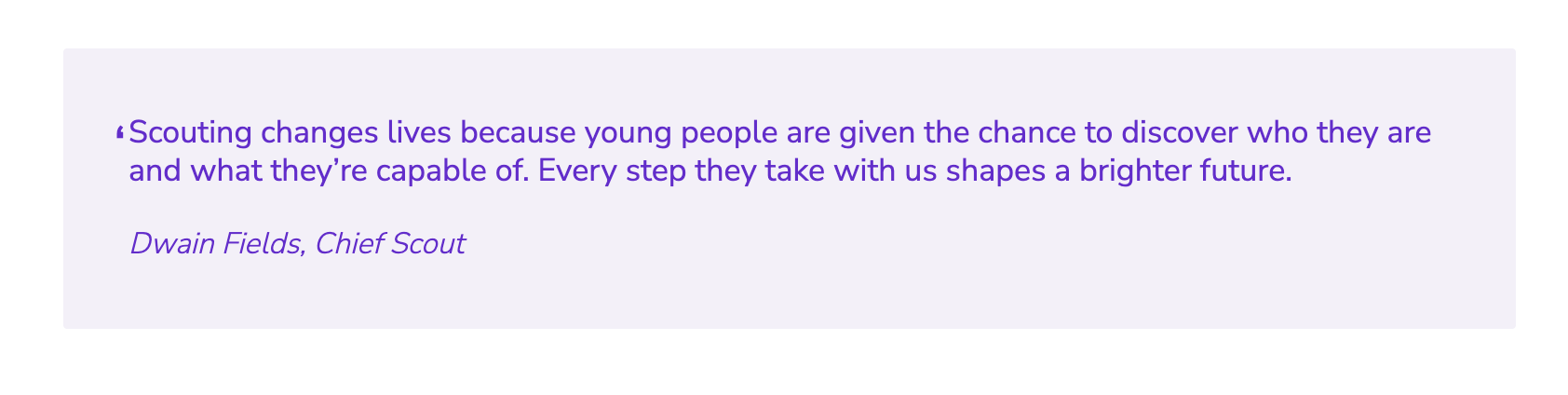
This is how it appears in code editor:
[quote author="Dwain Fields, Chief Scout"]Scouting changes lives because young people are given the chance to discover who they are and what they’re capable of. Every step they take with us shapes a brighter future.[/quote]
The square brackets indicate that this is shortcode. Shortcode does all the complicated coding for you to make the layout look the way it does.
The square brackets are called tags. There is always an opening tag and a closing tag.
All you have to do is copy the shortcode and then edit the relevant wording to whatever you want it to say. You will then get the same layout but with your wording.
Here is an example.
[quote author="John F Kennedy, US President"]Ask not what your country can do for you—ask what you can do for your country.[/quote]
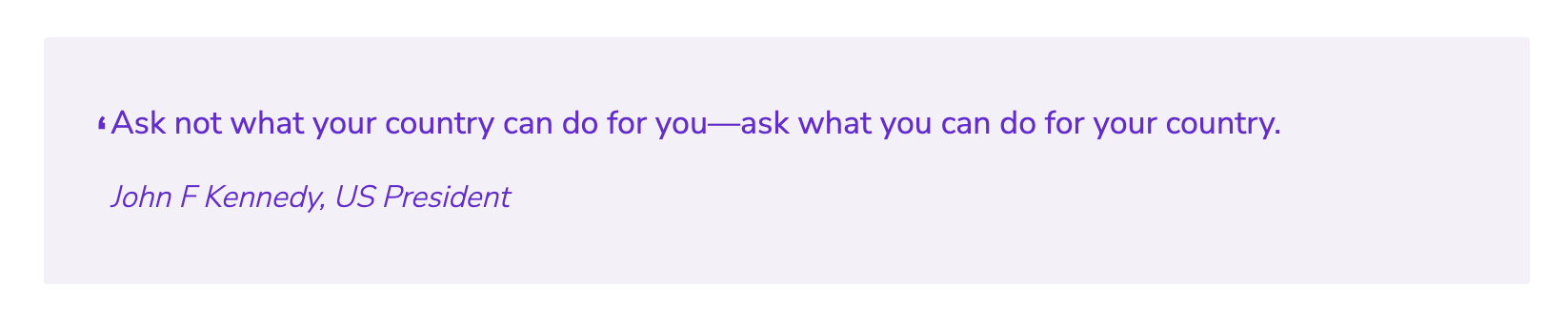
If it doesn’t work, the chances are that you have altered the shortcode in some way, for example by not including the opening and closing tags.
Here is another example. This layout involves a photo and a caption.
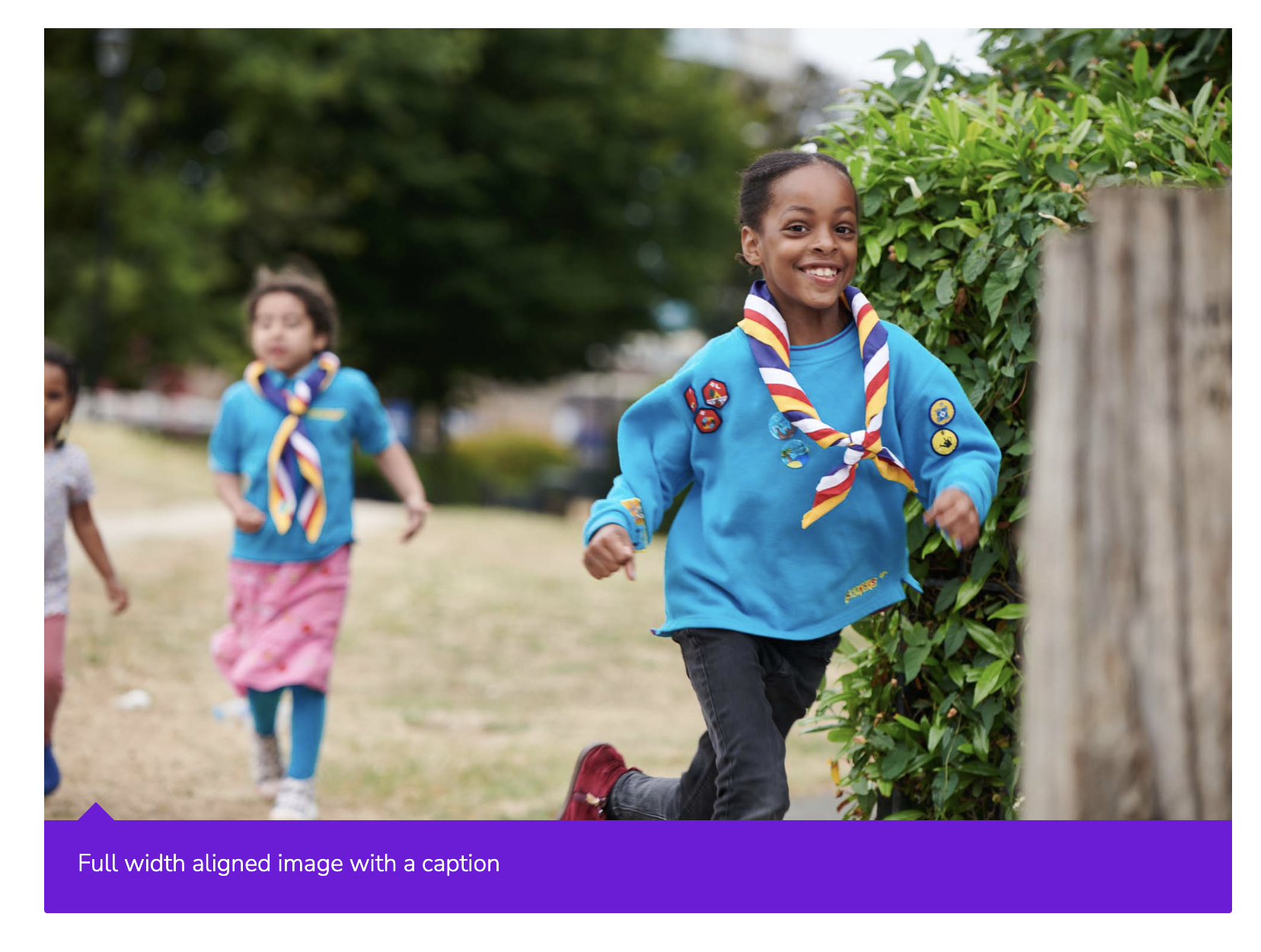
And here is the shortcode. All you need to do to change the photo and the caption is to change the bits highlighted.
[caption id="attachment_73" align="alignnone" width="799"]<img class="size-full wp-image-73" src="https://www.swstaging.co.uk/demonstration/wp-content/uploads/ScoutWebsites-ImageLibrary-10.jpg" alt="" width="799" height="533" /> Full width aligned image with a caption[/caption]