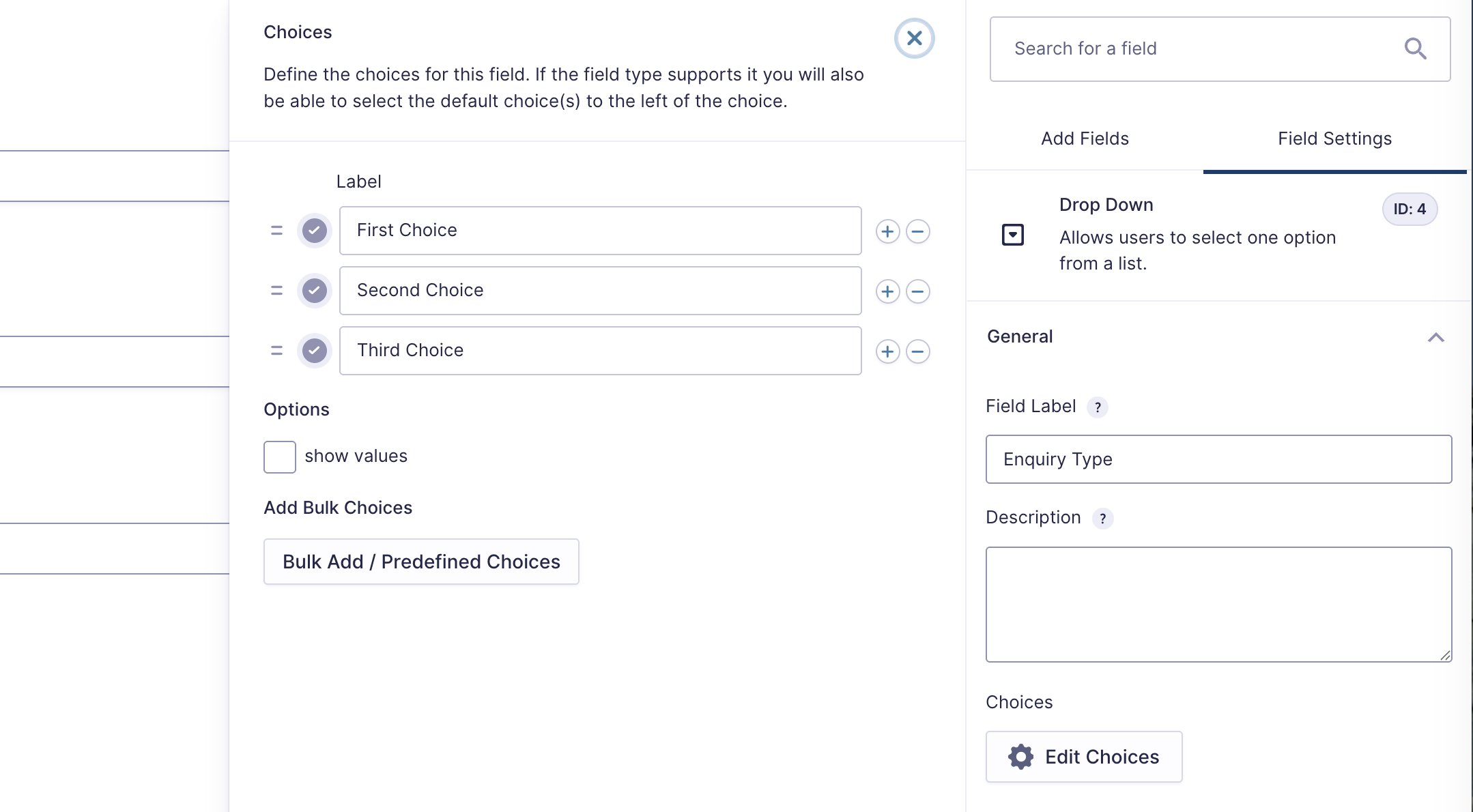
A dropdown list is useful if you want users to pick from a range of choices. For example, your Contact Us form comes with a dropdown list called Enquiry Type.
Read this article for how to start creating a form.
Here’s how to add a dropdown list:
Click the Drop Down field from the Standard Fields panel on the right.
Hover over the field in the main panel and click on it to open the Field Settings panel.
Change the Field Label from Untitled to give the field a name.
Click Edit Choices to open a Choices panel (see the image above).
Fill in as many of the Label boxes as you want. To add more, click the + sign next to the bottom box.
Click Save Form.
Simply follow the instructions above to open the Choices panel for the list you want to amend. You can amend the Labels and you can also use the + and – buttons to add and delete Labels.